

Studio basics
OpenViking Studio is the web interface included with the service. Use it to browse imported resources, retrieve relevant content, inspect memories and skills, and track background tasks. Studio connects the viking:// URIs returned by the CLI to their contents, so you can check the context an Agent uses.
This guide walks through connecting to a service, checking the dashboard, opening a resource, running a query, and inspecting a task. By the end, you can confirm that a resource is readable, appears in retrieval results, and has finished processing.
Prepare a service
Have a running OpenViking service and its address ready. For a first installation, follow the quickstart to install the tools, configure models, and start the service. If initialization is complete but your local service is stopped, run:
openviking-serverKeep the terminal open and visit Studio. The default local port is 1933. For another port or a remote deployment, use the actual service address followed by /studio/.
For a service with API Key authentication, prepare a User Key. Users with administrative responsibilities can also use an Admin Key. An administrator creates these keys as described in Authentication. A local development service with authentication disabled accepts an empty key.
The screenshots use an isolated local demo service on port 1940 with fictional Lighthouse project resources. A new service may have no data yet; complete the resource import in the quickstart before following the content examples below.
Connect to the service
On your first visit, choose the service type in the connection wizard. For a local deployment, select Open source, enter the service address, such as http://127.0.0.1:1933, choose your interface language, and continue.
On the identity screen, enter your user API key and click Verify connection. After verification, check the displayed Account and User, then enter Studio. Browsing and retrieval use the data scope of this identity.
The Root/Admin Key field is an optional management credential; configure it when needed. Routine resource access uses a user identity. See Authentication for details. To change an existing connection, use the connection name in the upper-left corner or open Connection Settings.
Check the dashboard
Home shows context data volume, tokens consumed today, retrieval calls today, and usage and submission trends. Return here after importing resources or running queries to understand usage. A newly started service may have empty charts or zero counts.
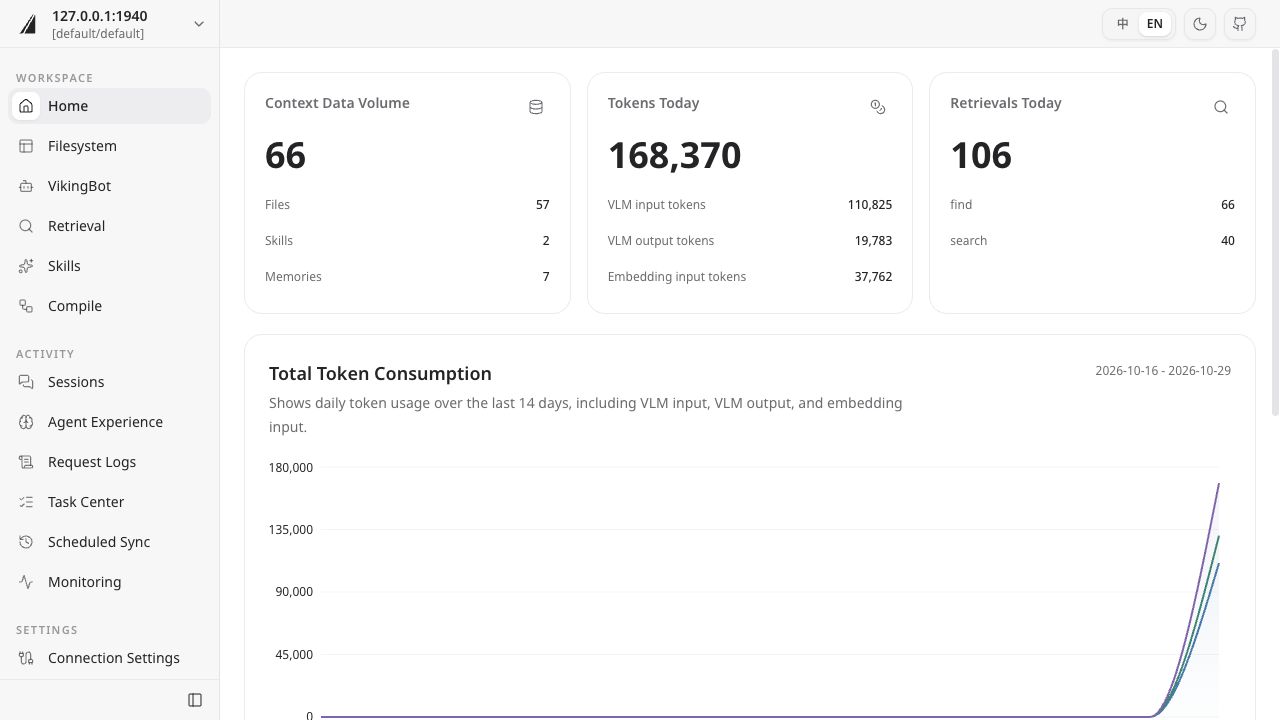
The sidebar groups pages into Workspace, Activity, and Settings. Start with Filesystem and Retrieval to inspect content, use Task Center to check processing progress, and open Monitoring for service status.
Browse resources
Open Filesystem, expand resources, locate an imported directory, and select a file. Its contents appear in the center panel. For Markdown, switch between Preview and Source. Copy the full viking:// URI from the toolbar to use it in a query or pass it to an Agent.
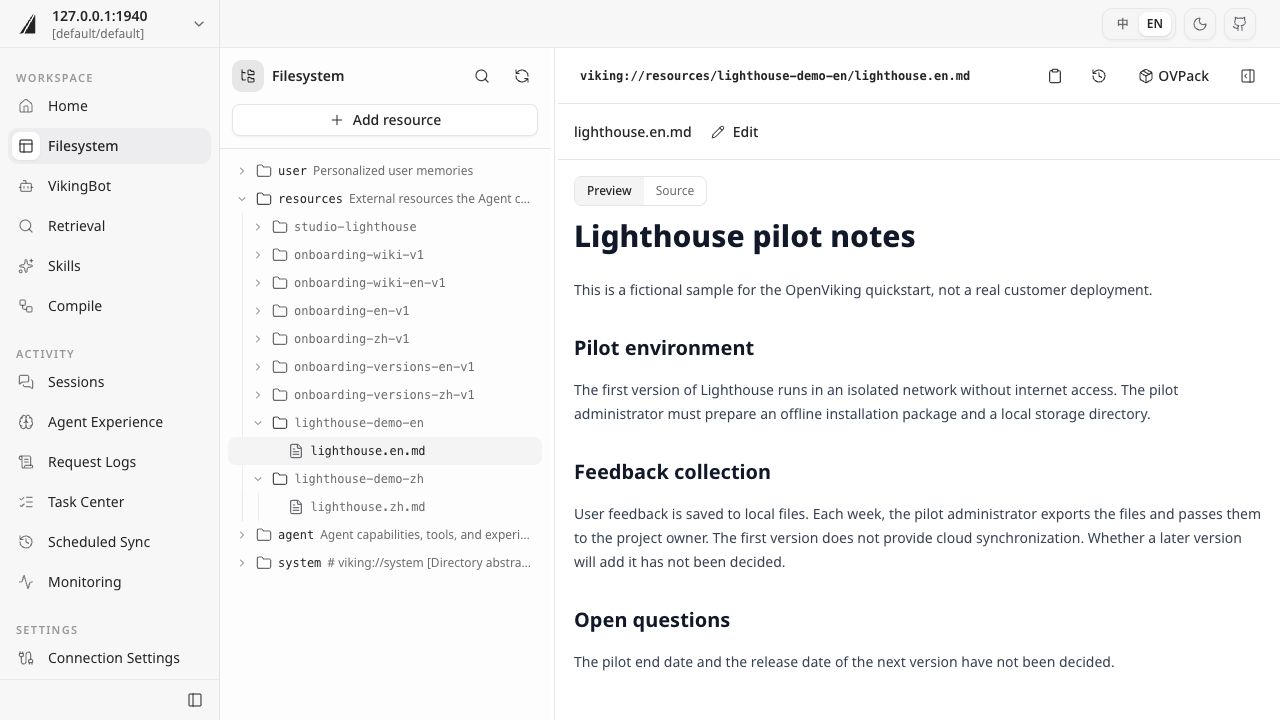
The Lighthouse source states that feedback is stored in local files, exported weekly by the pilot administrator to the project owner, and has no cloud synchronization in the first version. Checking these concrete facts helps you assess whether an Agent's answer is grounded in the resource.
The filesystem also exposes other context: user contains user memories, while agent contains Agent skills and experience. Visible directories and available operations depend on the active identity and its permissions.
To import another resource, click Add resource and choose the source and destination in the form. Check its processing result in Task Center, then open the file to inspect its contents. See Resource retrieval for directories and import methods. The version history and OVPack toolbar entries lead to the operations covered in Version management and Import and export.
Retrieve content
Open Retrieval, select find, and enter a concrete question, such as “How should Lighthouse collect feedback in its first version, and what must be prepared?”. Choose Custom URI as the scope and enter the resource directory URI. Click the search button or press Enter.
If you used the quickstart directory, enter viking://resources/lighthouse-demo. The screenshot uses viking://resources/lighthouse-demo-en; use the URI copied from your own filesystem.
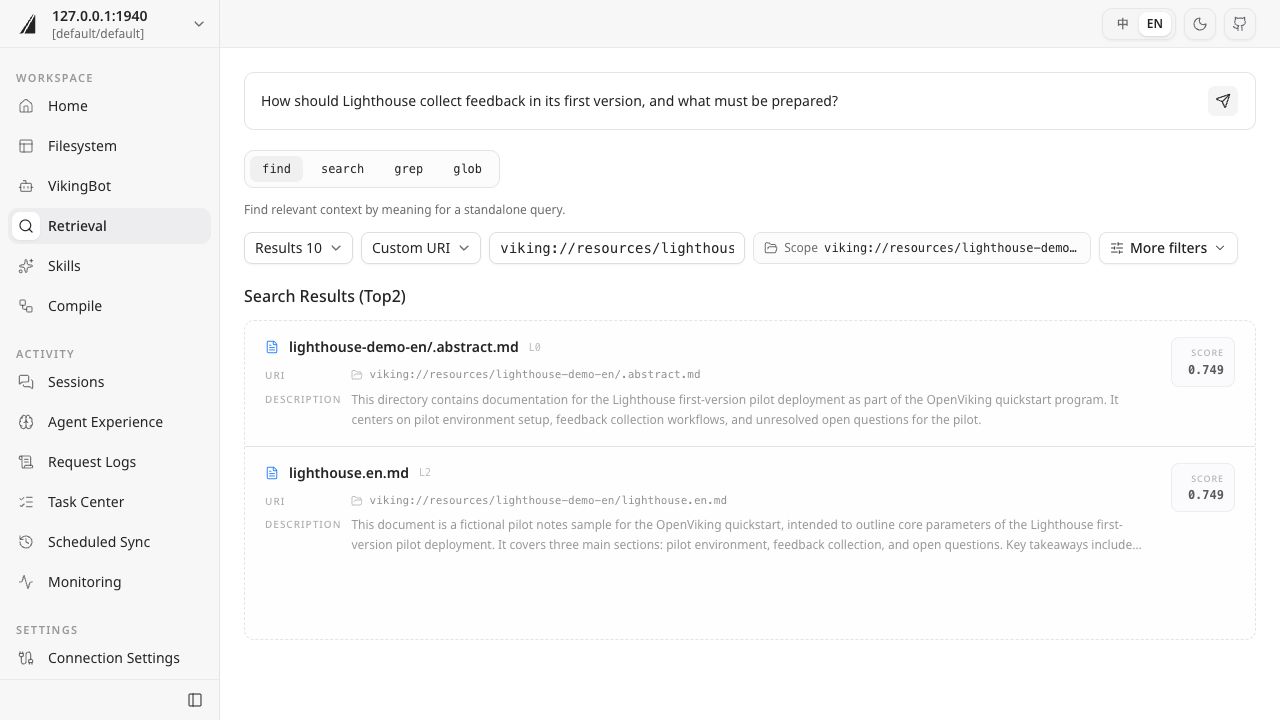
Results show the URI, a description, the context layer, and a relevance score. Click a file result to inspect its contents. If a result is a directory abstract, continue into the directory to read the source. Scores compare how closely results match the query; check factual claims against the original text.
| Method | When to use it |
|---|---|
find | Find context by meaning for a standalone query |
search | Use enhanced retrieval that can incorporate session context to interpret intent |
grep | Match text or regular expressions inside file contents |
glob | Find files using path patterns |
To generate an answer from the retrieved resources, continue with VikingBot or connect your own Agent.
Track tasks
Resource imports, session commits, and index rebuilds create background tasks. Open Task Center, filter by task type or status, and select a task to inspect its resource URI, pipeline progress, duration, and execution log.
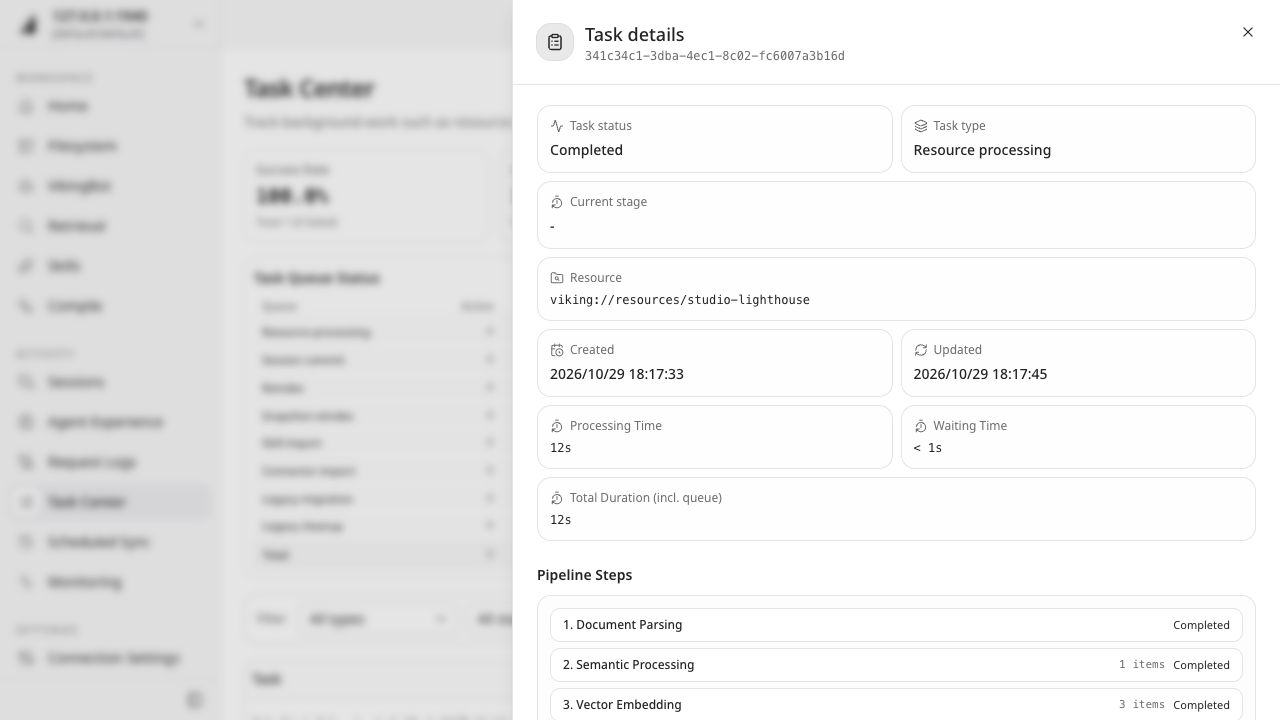
After a task shows Completed, return to Filesystem and Retrieval to check the output. For a failed task, inspect its error and execution log to identify the affected stage, then check the relevant configuration or input.
Sessions lets you browse conversation records and inspect memory changes from session commits. Follow Memory usage to extract memories from a conversation and recall them in a later task.
Explore other pages
| Page | Purpose | Learn more |
|---|---|---|
| VikingBot | Chat with the built-in Agent and complete tasks using resources; requires Bot to be enabled | VikingBot |
| Skills | Browse and manage instructions that Agents can use | Skill usage |
| Compile | Organize source material into reusable content such as a Wiki; requires an available Compile Runtime | Context compilation |
| Agent Experience | Inspect experience context accumulated by Agents | Memory usage |
| Request Logs | Inspect request records to investigate call failures | Observability and troubleshooting |
| Scheduled Sync | View and manage configured resource synchronization tasks | Watch API |
| Monitoring | Check service health and components such as queues, models, and storage | Observability and troubleshooting |
| Gateway | Manage model upstreams, context policies, and gateway credentials | Gateway integration |
Available capabilities depend on the service configuration and your permissions. For team data boundaries and sharing permissions, see Account and Access control.
Next, run a query relevant to your own work, open the source, and compare it with the Agent's answer. Use Evaluation to record whether resource coverage and answer quality meet your task's needs.