

Gateway setup
The OpenViking gateway connects a client to a model service, adds relevant memories to forwarded requests, and saves conversations to OpenViking for later extraction and reuse. Compatible clients that support a custom Base URL and API key can access memory through their connection settings.
This guide uses a Python sample to connect → send a conversation → inspect memory → use it in a new conversation. You will provide review conventions for the fictional Mist project, then start another conversation and check whether the answer follows those conventions.
Beta
The OpenViking gateway is currently in Beta. Interfaces and configuration may change in future releases. When upgrading, review the release notes and check your existing connection settings.
Prerequisites
This guide uses a local service. Prepare the following:
- OpenViking service: Install and configure it using the quickstart, with working embedding and VLM models. The gateway is included in OpenViking and shares the data service's port when enabled.
- Python 3: Used to run the sample; see Prepare the local runtime. The sample uses only the Python standard library.
- CLI connection: Connect to the local service using CLI basics to inspect sessions and memories later. The CLI and gateway key should use the same OpenViking user; the default local mode uses the
defaultuser. - Upstream model: Prepare an endpoint, model name, and API key for a model service that supports OpenAI Chat Completions.
These steps call the upstream model and write fictional project conventions to the current user's memory. Memory extraction also calls the models configured on the service, incurring provider charges. For remote service identities and permissions, see Gateway quickstart.
Enable the local gateway
Run the initialization wizard, choose Update gateway from the existing-configuration menu, and enable the gateway:
openviking-server initSave the configuration, stop the service in its original terminal, and restart it using your usual command. For example:
openviking-serverIf the service also runs VikingBot, retain existing flags such as --with-bot.
Open Studio and select OpenViking Gateway in the sidebar. The local gateway address is http://127.0.0.1:1933/gateway, which the sample uses below.
Use the gateway address displayed in Studio. The screenshots below use local port 1934; if your service uses a different port, update the addresses in the subsequent commands accordingly. Select a screenshot to open it at full size.
Configure models and memory
In Studio, prepare an upstream, a context profile, and a gateway key in that order.
Configure an upstream
An upstream is the model service to which the gateway forwards requests. In the Upstreams tab, select or add an upstream that supports Chat Completions, enter its endpoint and credentials, and use the test action to confirm connection or model availability.
The gateway may have imported an upstream from the service's VLM configuration. Check and use it if it matches your requirements; for imported Coding Plan upstreams, complete the confirmation shown by the UI. The gateway forwards requests using their original protocol, so this sample requires a Chat Completions upstream.
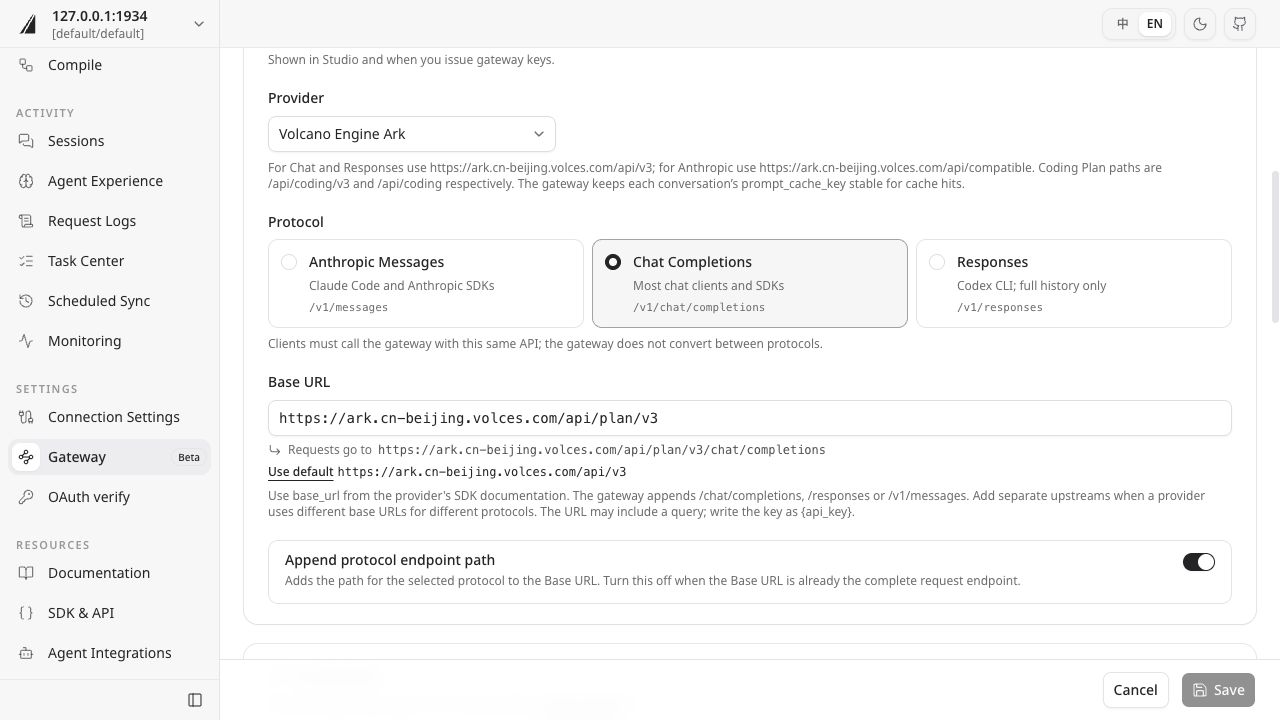
In the upstream editor, select Chat Completions, enter the Base URL supplied by your model service, and check the full request address displayed below it.
Set up a context profile
A context profile controls memory recall and conversation capture. In the Profiles tab, create a profile such as “Mist walkthrough” with these settings:
| Setting | Value for this guide | Purpose |
|---|---|---|
| Memory recall | Enabled | Add relevant memories to new messages |
| Search scope | Memory | Use saved project conventions |
| Conversation capture | Enabled | Save conversations to OpenViking for memory extraction |
| Latest-response wait | 30 seconds | Save the final turn and submit the session after idle time |
| Retained recent messages | 0 | Include this short conversation's messages in archiving and memory extraction |
| Recall summary | Enabled | Show a summary of added memories in the response |
| OpenViking tools | Disabled | Complete this workflow through automatic recall and capture |
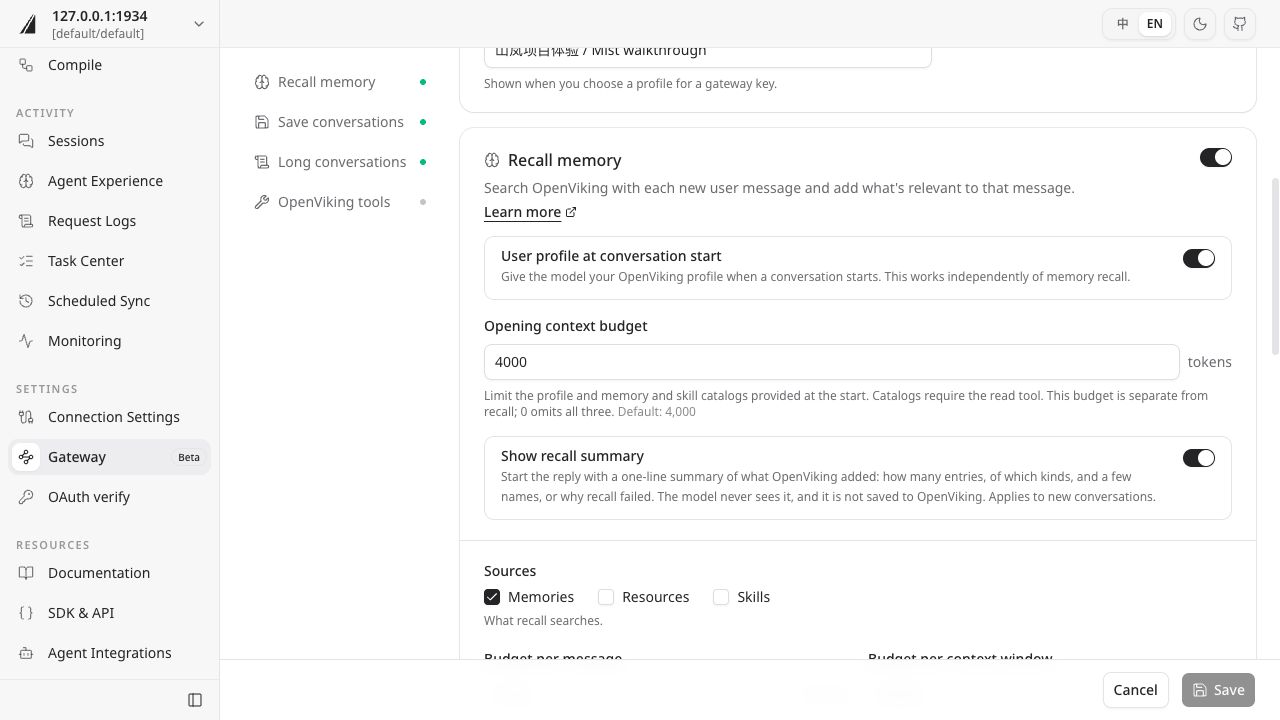
In the profile editor, select Recall memory, enable Show recall summary, and select Memories under Sources.
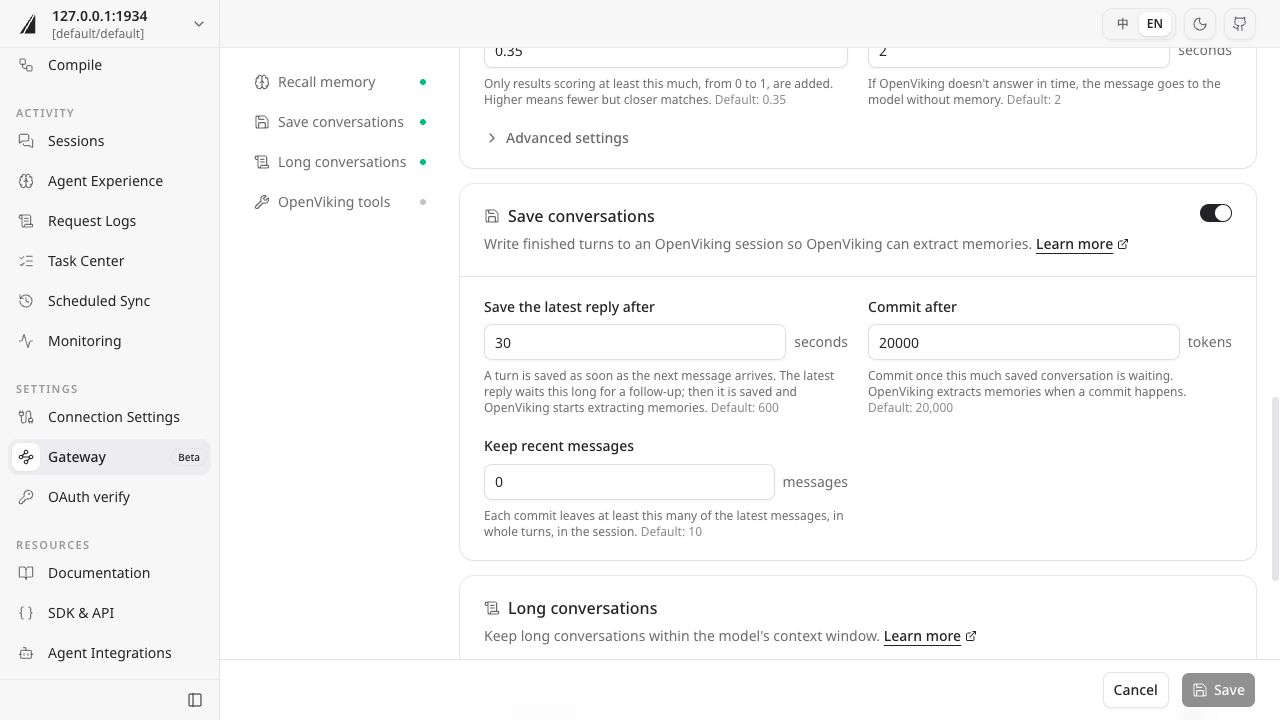
Next, select Save conversations, set Save the latest reply after to 30 seconds, and set Keep recent messages to 0. Then turn off tools in the OpenViking tools section and save the profile.
Save the profile, issue a key using it, and start a new conversation below. Profile changes apply to conversations started afterward. For everyday use, adjust waiting and retention to your tasks; see Context profiles.
Issue a key
In the Keys tab, issue a gateway key for this walkthrough, selecting the profile and upstream you prepared. Copy the full ovgw_… value from the dialog for the sample connection; the complete key is shown only when issued.
In the issue-key form, enter a name, check Who is this for?, and select your context profile and upstream. If the upstream shows Blocked, return to its settings and follow the prompts to check credentials and plan eligibility before sending requests.
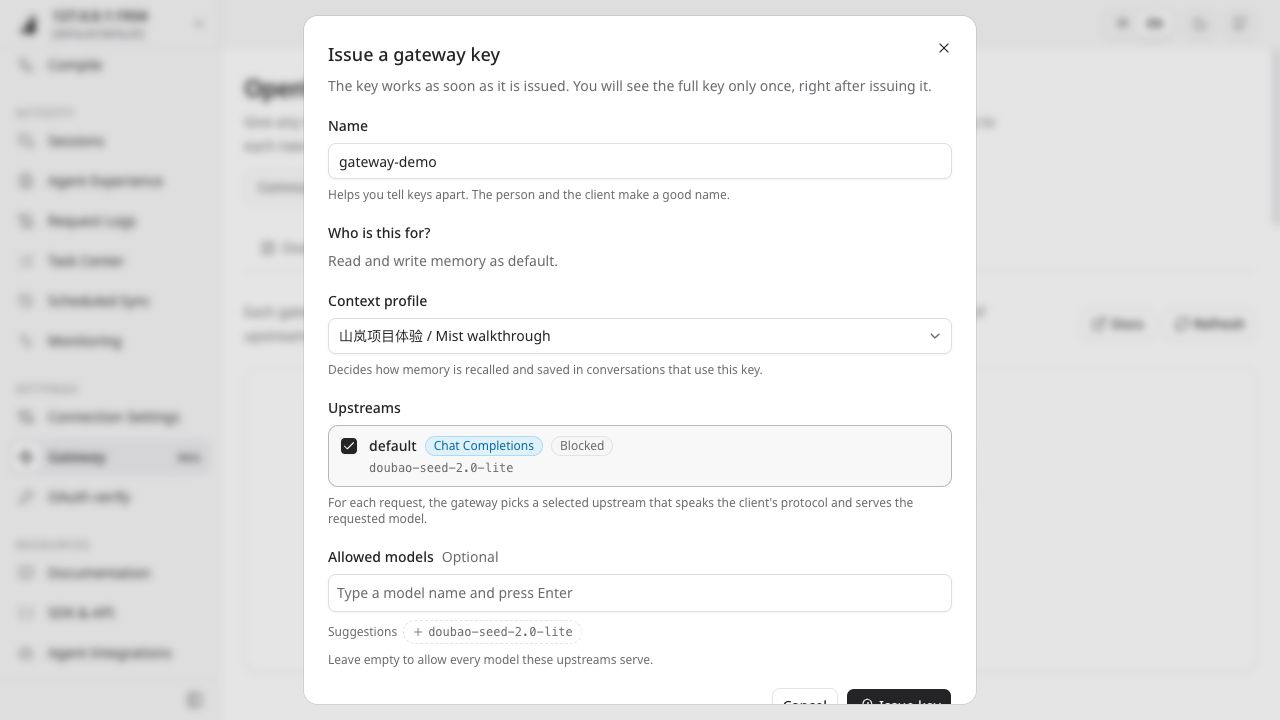
The client uses this gateway key to access the model, while the provider API key stays in the upstream configuration. The ov CLI continues to use its existing OpenViking connection to inspect sessions and memories.
Send two turns
Download the Python sample, open a terminal in the download directory, and extract it:
unzip gateway-demo-v1.zipThe package contains gateway-demo.py. The following commands use a macOS / Linux terminal. Set the gateway address and replace <upstream-model-id> with an available model name from your upstream:
export GATEWAY_URL=http://127.0.0.1:1933/gateway
export GATEWAY_MODEL='<upstream-model-id>'
Run the following command, enter the gateway key, and press Enter. Key characters are hidden as you type:
read -r -s GATEWAY_KEY
export GATEWAY_KEY
Send two turns that introduce the Mist project conventions: check four risks, use Markdown for reports, and name the file mist-review.md.
python3 gateway-demo.py capture --language en --run v1The sample first sends the conventions, then sends “Thank you” with the complete first-turn history. The terminal should show two responses. History in the second request lets the gateway save the first turn; the final turn is saved and submitted after the configured idle wait.
Confirm both requests succeeded in Studio's request log. Then find the gateway-… session containing the Mist project conventions in the Sessions page. Use the actual service-generated session ID for the CLI checks below.
Inspect the memory
After messages stop, the gateway waits the configured 30 seconds before submitting the final turn. Background extraction takes additional time. Check every 10 seconds for up to 5 minutes initially. If processing continues, keep the session and task IDs and check again later. For failed or cancelled tasks, inspect the error or cancellation reason.
List sessions, then replace <gateway-session-id> with the ID found in Studio to inspect its commit information:
ov session list
ov session get <gateway-session-id>
List memory extraction tasks. Find the task whose resource_id matches that session ID and use its task_id in the next command:
ov task list --task-type session_commit
ov task status <task_id>
When the task status is completed, copy archive_uri from the task result and inspect the memory changes:
ov read "<archive_uri>/memory_diff.json"Copy a memory uri from operations.adds or operations.updates and read its content:
ov read "<memory-uri>"Confirm that the memory preserves all three conventions—four risks, Markdown format, and mist-review.md—before starting a new conversation. Memory names and categories depend on the actual extraction result.
Use a new conversation
Run the recall phase in the same terminal, keeping the gateway address, key, and model settings:
python3 gateway-demo.py recall --language en --run v1This command starts a new Python process and uses a different conversation identifier. It sends only a request to prepare a review checklist using the saved Mist conventions and give the delivery filename. The gateway supplies the specific conventions from memory.
Check that the response includes places for four risk checks, uses Markdown, and names mist-review.md. The sample does not provide specific risks, so the answer can leave them to be filled in or label proposed risks as suggestions.
Check the result
Use the memory text, response recall summary, and Studio request log to check each stage:
| Stage | Expected result |
|---|---|
| Request | Both model requests succeed and the terminal receives responses |
| Capture | The corresponding session and its archive contain the project conventions |
| Extraction | The task completes and the memory preserves all three conventions |
| Recall and use | The new conversation has recall evidence and its answer follows the conventions |
Wording can vary. Check both whether the memory was recalled and whether the answer used its information.
Troubleshooting
| Symptom | What to check |
|---|---|
| Requests fail or the model is unavailable | Check the gateway address, the key's upstream binding, model name, and Chat Completions protocol; inspect the request log |
| No session appears in Studio | Check conversation capture, confirm that the current user matches the gateway key's user, and inspect the request's capture status |
| A session exists but no memory is generated | Check idle waiting, retained recent messages, and the session_commit task status |
| Memory exists but is not recalled | Check the key's user, context profile, and search scope; after changing the profile, retry in a new conversation |
| Recall is recorded but the answer omits conventions | Compare memory text with the response and ask the model to revise using the saved conventions |
For more issues, see Gateway troubleshooting.
Next steps
Connect your own application using Client connections. For remote services and team configuration, see Gateway quickstart.
To repeat the walkthrough, use the same new --run value in both sample commands to create a fresh pair of conversations. Existing memories for the same user remain available for recall. To start with empty memory, use a separate demo user.
When finished, revoke the walkthrough's gateway key in Studio and use the session records and memory_diff.json to identify demo data for cleanup. If this run updated existing memories, review the changes and retain information you still need.